MyRadar Web SDK
Add MyRadar's animated radar, warnings, lightning, hurricanes and wind to any Mapbox GL JS map, with ready-made playback and layer controls.
Oct 9, 2026 · Shell · TypeScript
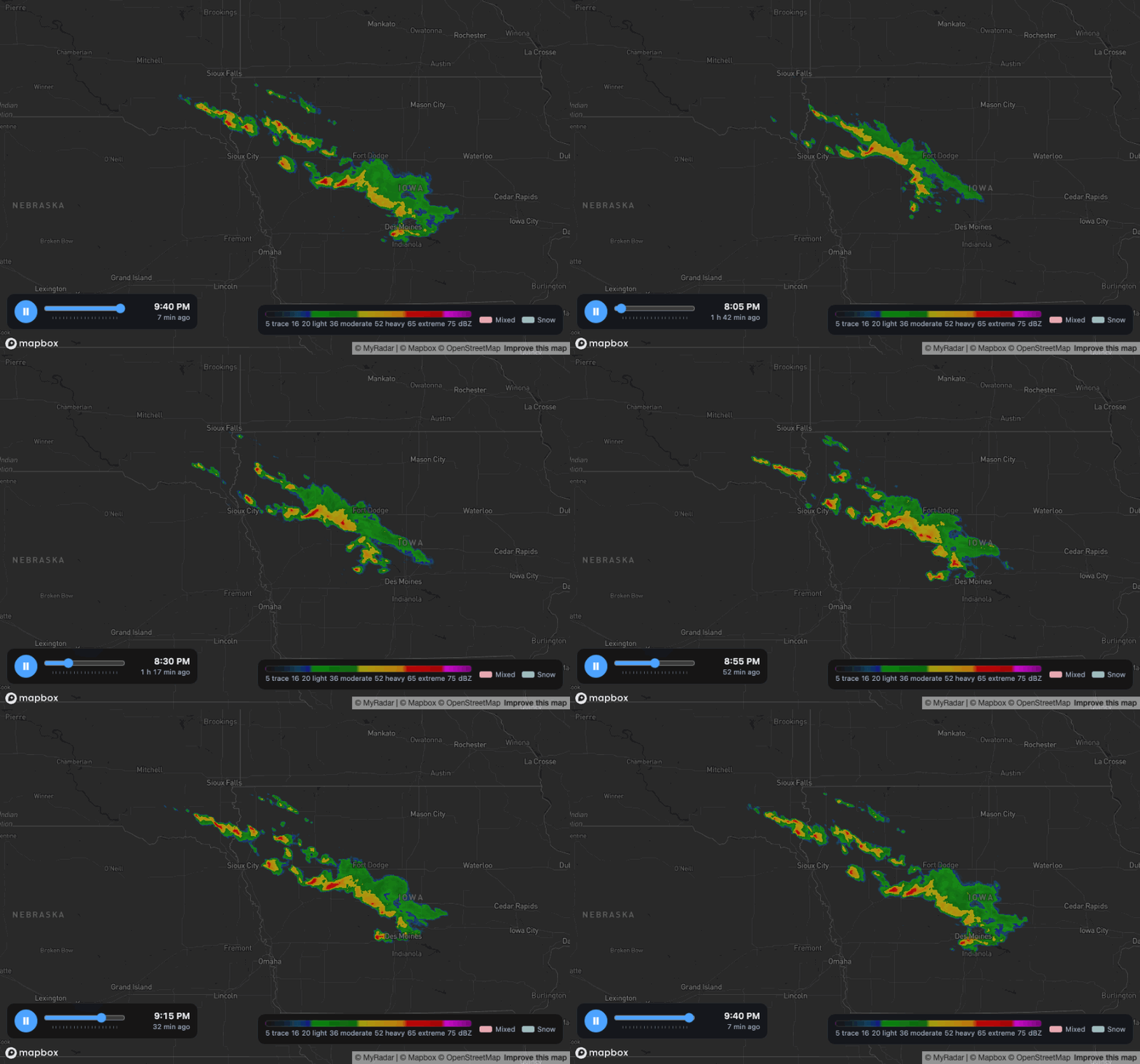
The MyRadar Web SDK brings MyRadar's weather map to any website built on Mapbox GL JS. It draws the same smoothly animated HD radar as the MyRadar apps, plus warnings, lightning, hurricanes and wind, and ships ready-made controls to play the loop, explain its colors and switch layers.
Two packages#
| Package | What it gives you |
|---|---|
@myradar/mapbox | Weather layers for a Mapbox map: animated radar, watches and warnings, lightning, hurricanes and wind. |
@myradar/controls | UI for those layers: a radar time slider, the radar color legend and a layer switcher. Plain DOM, so it works with any framework. |
npm install @myradar/mapbox @myradar/controls mapbox-glFeatures#
Animated radar that morphs between scans#
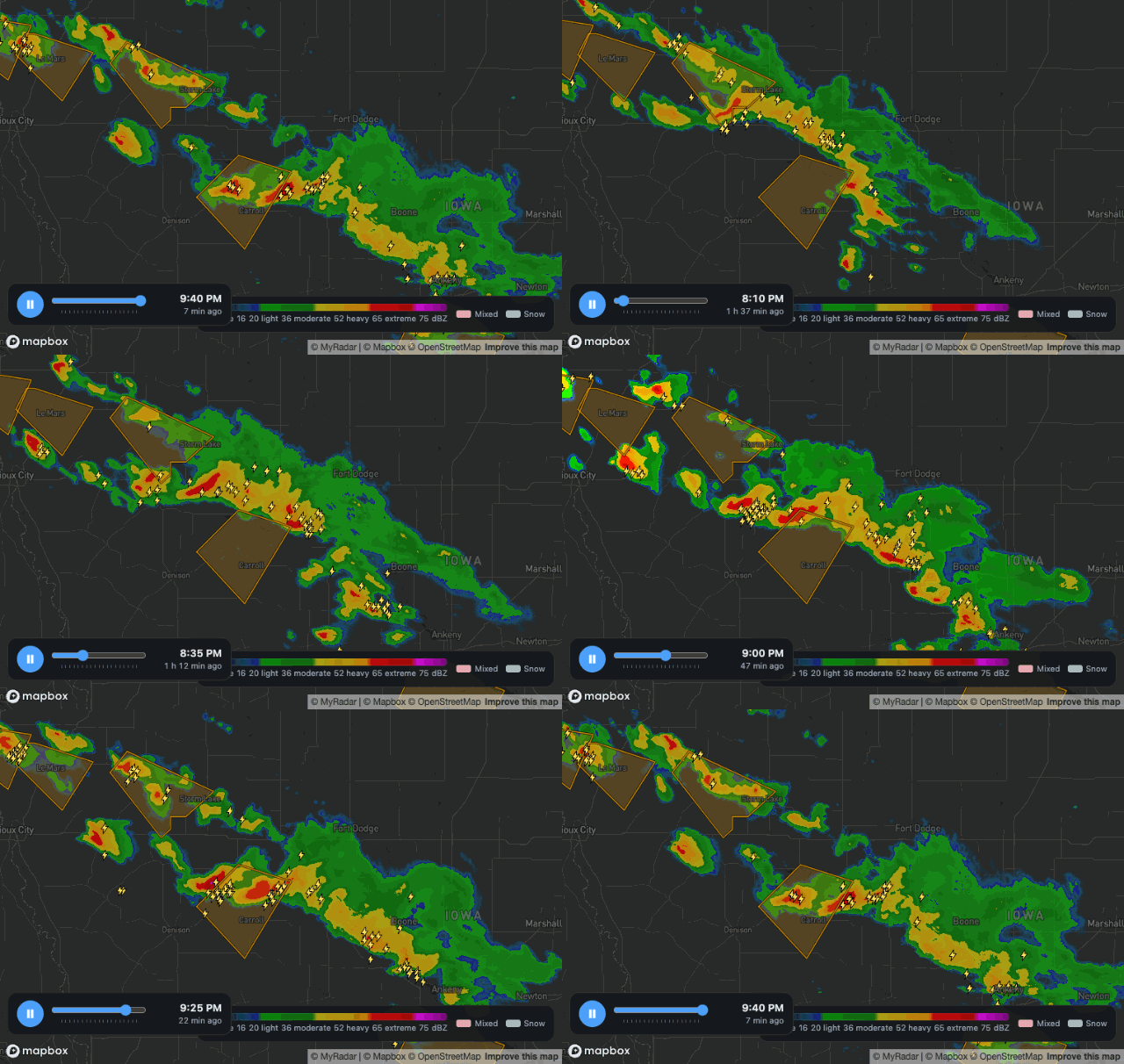
Most radar loops step from one scan to the next. MyRadar radar blends each frame into the next and, over the US and Australia, moves the echoes along the storm's motion, so the loop plays as continuous motion.
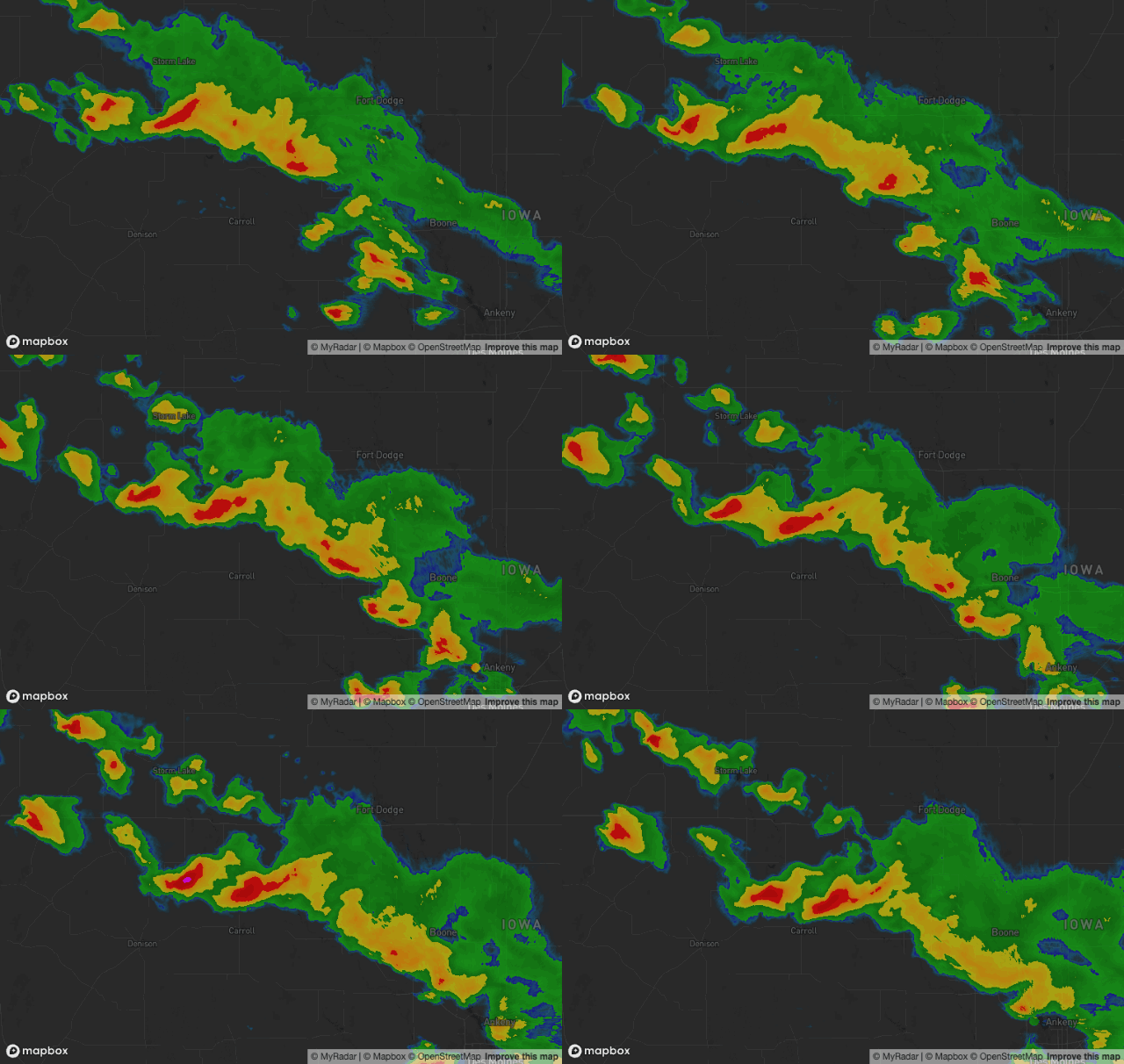
- Three products:
radar(HD, morphing, the default),hdRadar(HD, each scan exactly as received) andsdRadar(national composite). - Precipitation type: rain, mixed precipitation and snow get their own colors.
- Palettes tuned for dark or light base maps, or a single unclassified palette.
- Live by default: the loop covers the last 100 minutes and refreshes itself every 5 minutes.
Time slider and legend#
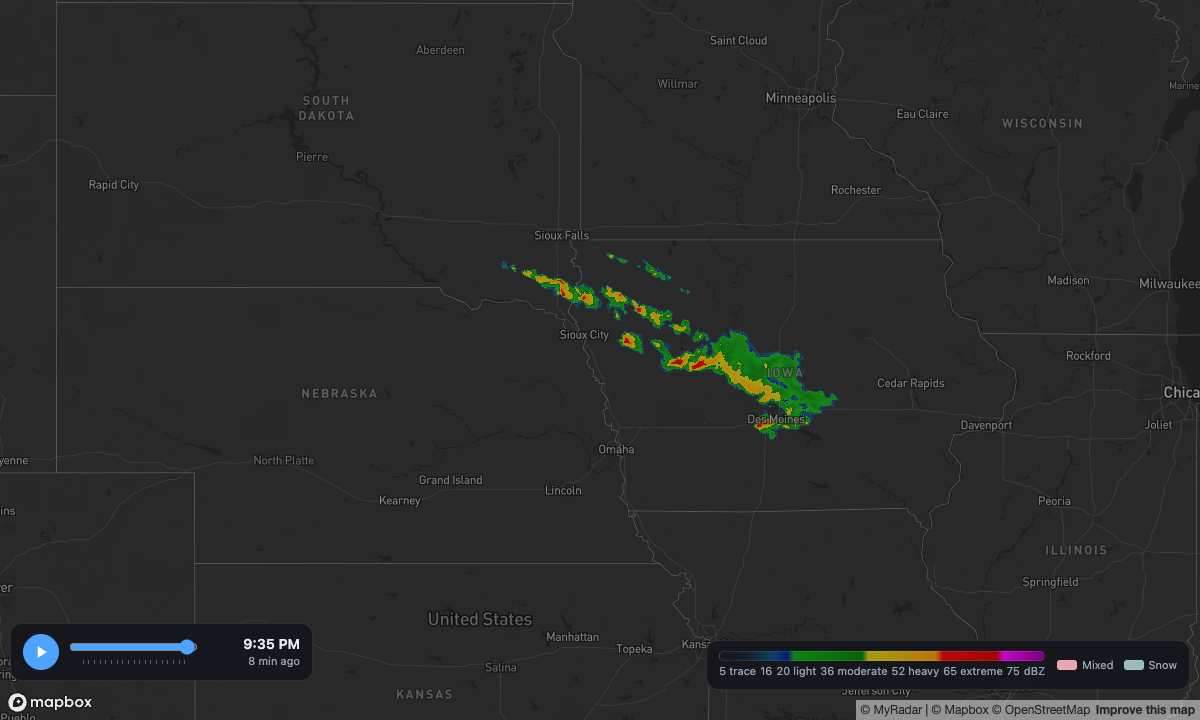
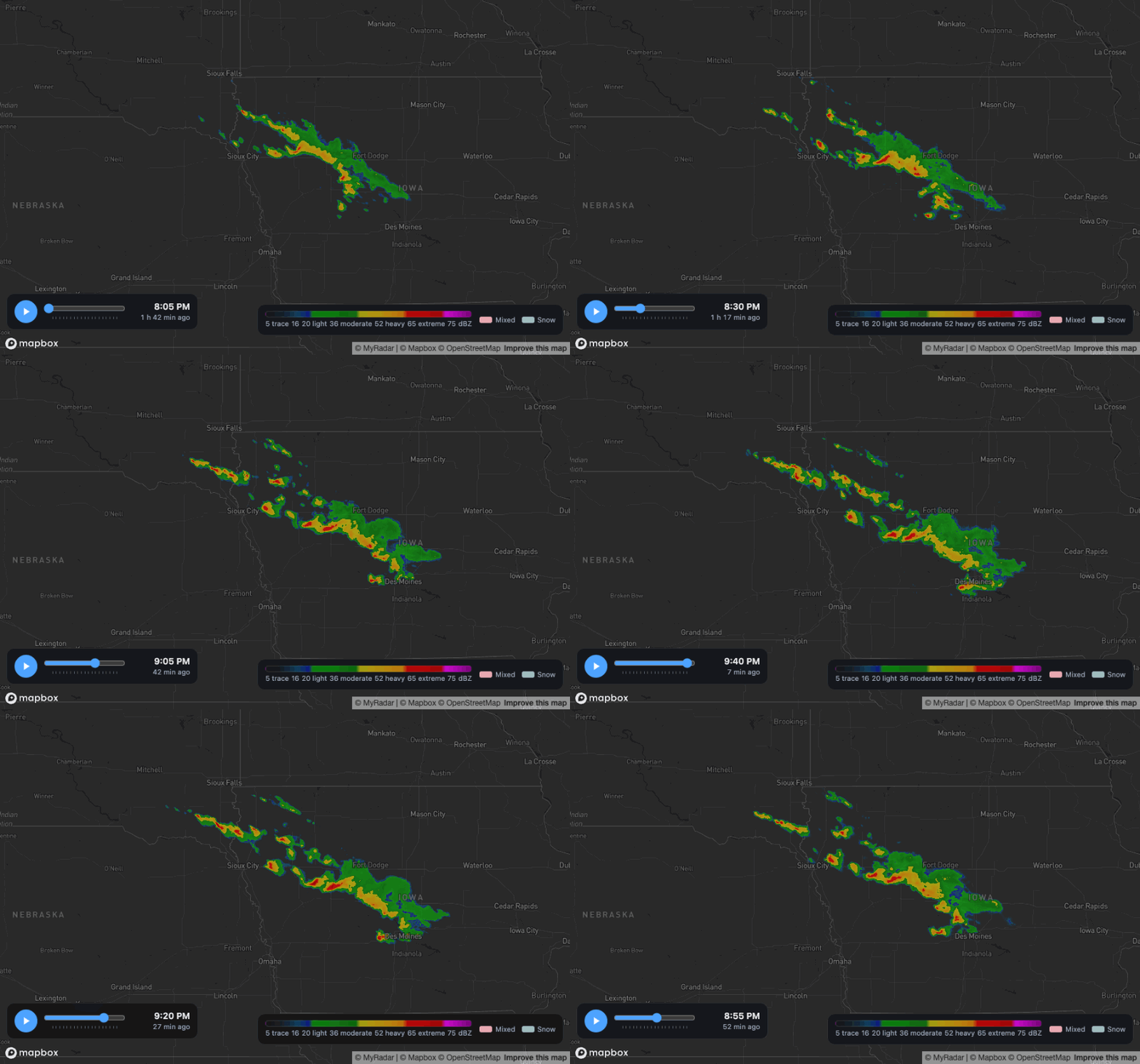
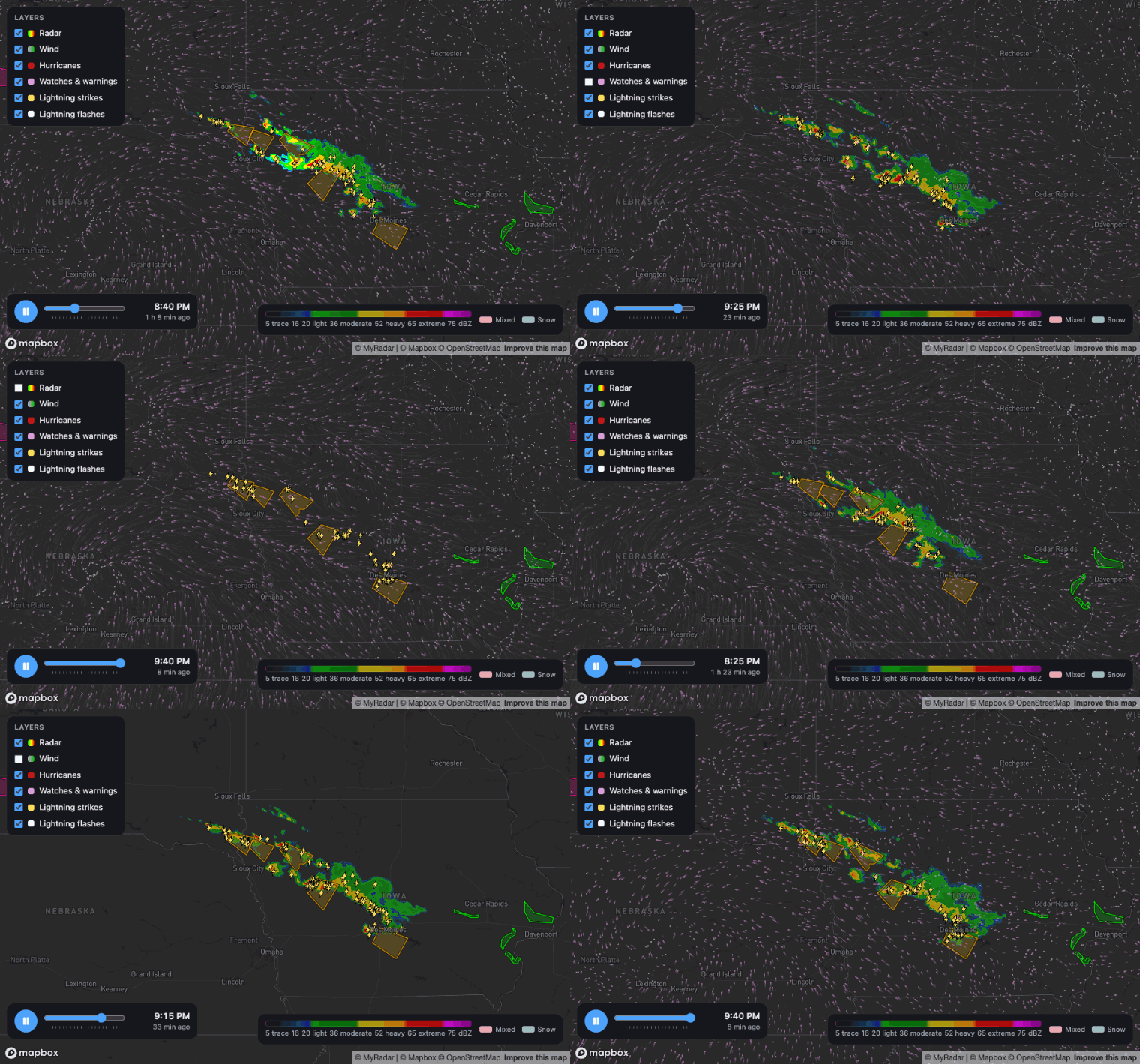
TimeSlider plays, pauses and scrubs the loop and shows each frame's time. RadarLegend shows
what the colors mean and follows palette changes on its own.
Watches, warnings and lightning#
National Weather Service watches, warnings and advisories, drawn in their official colors. Tornado, severe thunderstorm, flood and hurricane alerts stay on top of the radar so they are always readable. Lightning strikes appear as bolts that follow the radar loop.
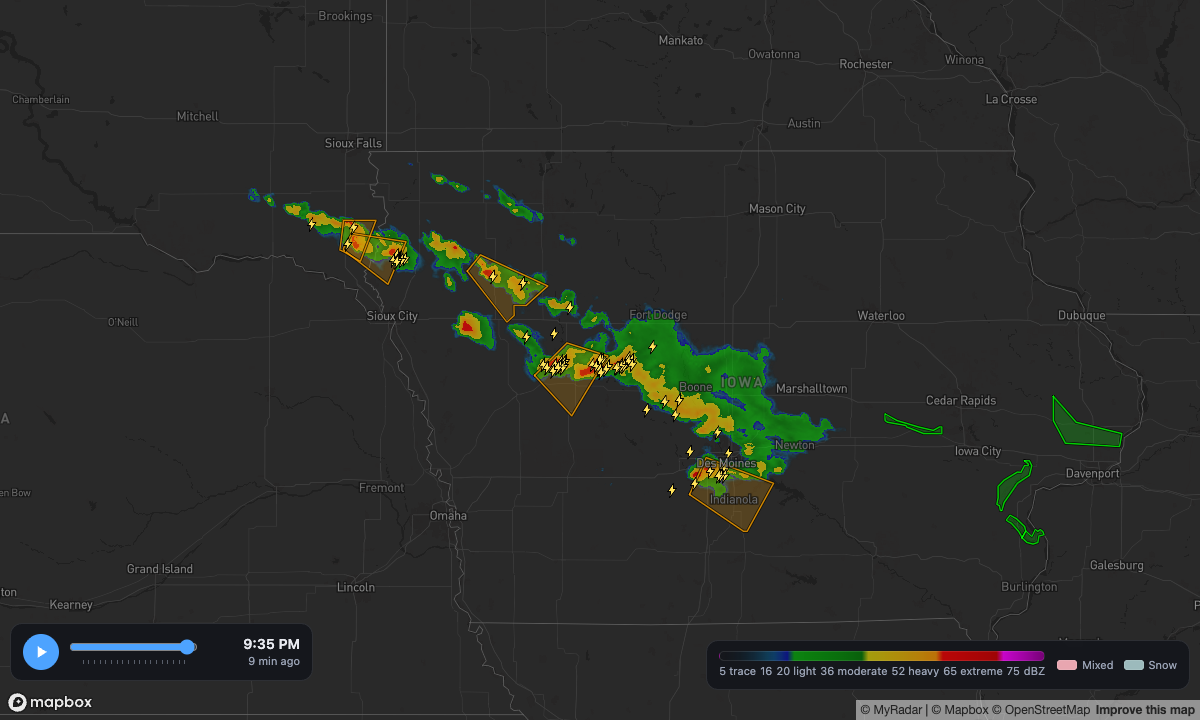
As the loop plays, lightning also flashes inside the storm: the radar brightens for an instant around a strike, the way it does in the MyRadar apps.
Hurricanes#
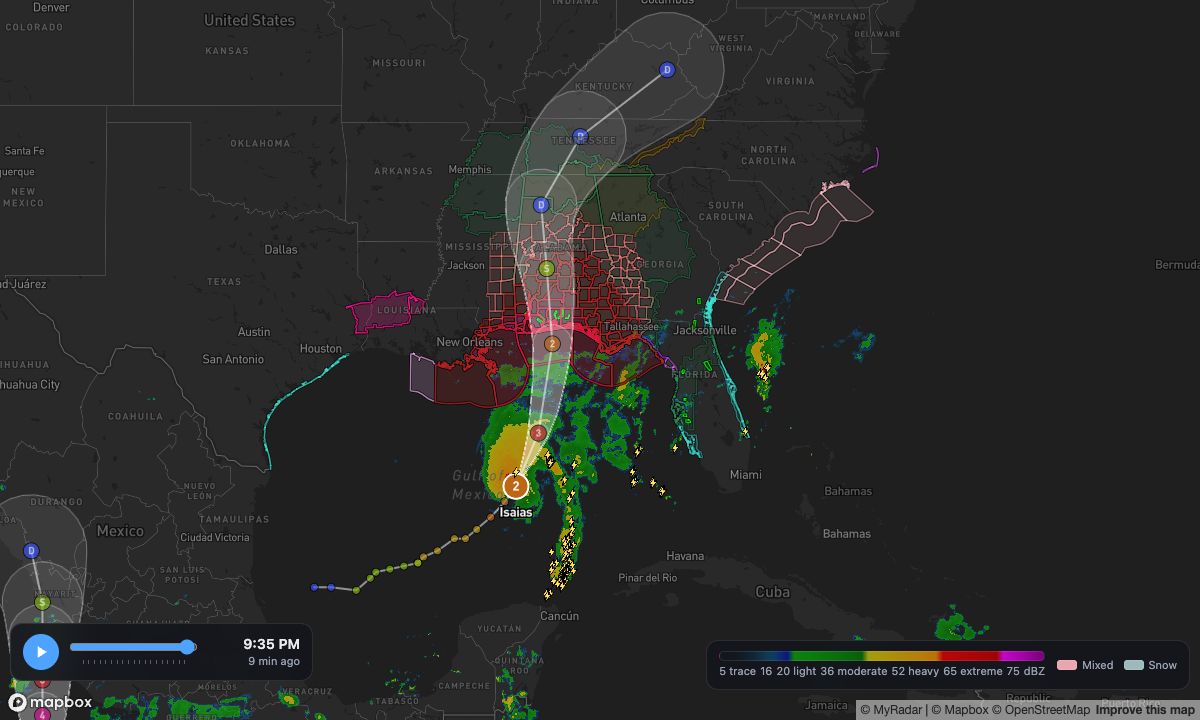
Active tropical cyclones with their name and category, past positions, forecast positions and the forecast cone.
Wind#
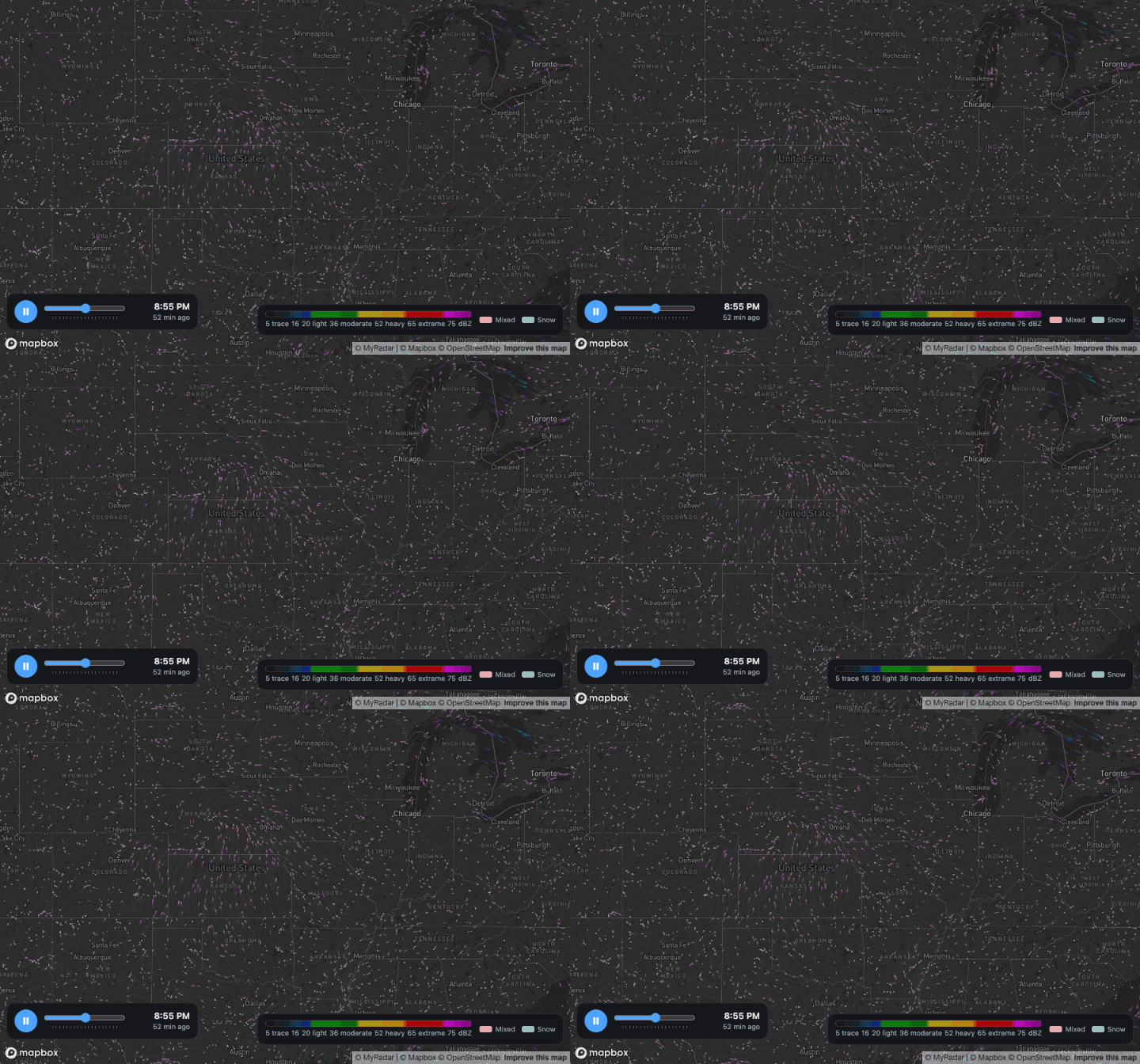
Animated wind particles, colored by speed, for surface winds or the jet stream.
Layer switcher#
LayerControl turns any layer on and off and can remember the reader's choices between visits.
One helper builds the standard list, and your own layers can sit alongside them.
Requirements#
A MyRadar API key. Every layer loads its data from the MyRadar API gateway, which needs your key on every request. Get one from the developer portal, and see Your API key for where it goes.
A Mapbox access token. The base map comes from Mapbox, through your own Mapbox account, and you can use any Mapbox style. The SDK only adds the weather on top; all of its data comes from the MyRadar SDK gateway. Create a token in your Mapbox account and restrict it to your site's URLs.
Mapbox GL JS v3 and a WebGL2 browser. That covers current Chrome, Edge, Firefox and Safari on desktop and mobile.
The Mercator projection. The weather layers don't render on the globe. The radar switches
the map to Mercator automatically, or you can set projection: 'mercator' when creating the map.
Network access. If your site uses a Content Security Policy, allow
https://sdkwrapperapi.azure-api.net in connect-src, alongside the Mapbox hosts.
Attribution. The radar adds MyRadar to the map's attribution line. Keep it visible.
Quick start#
import mapboxgl from 'mapbox-gl';
import 'mapbox-gl/dist/mapbox-gl.css';
import { RadarLayer, firstSymbolLayerId } from '@myradar/mapbox';
import { TimeSlider, RadarLegend } from '@myradar/controls';

mapboxgl.accessToken = import.meta.env.VITE_MAPBOX_TOKEN;
const apiKey = import.meta.env.VITE_MYRADAR_API_KEY;

const map = new mapboxgl.Map({
  container: 'map',
  style: 'mapbox://styles/mapbox/dark-v11',
  center: [-93.5, 41.5],
  zoom: 5.5,
  projection: 'mercator',
});

const radar = new RadarLayer({ apiKey });
map.on('style.load', () => map.addLayer(radar, firstSymbolLayerId(map)));

map.addControl(new TimeSlider({ radar }), 'bottom-left');
map.addControl(new RadarLegend({ radar }), 'bottom-right');Adding the layer below the first label layer (firstSymbolLayerId) keeps city names readable
on top of the weather.
Your API key#
Pass your MyRadar API key to every weather layer you create, as the apiKey option:
const apiKey = import.meta.env.VITE_MYRADAR_API_KEY;

const radar = new RadarLayer({ apiKey });
const warnings = new WarningsLayer({ apiKey });
const lightning = new LightningLayer({ apiKey });
const hurricanes = new HurricanesLayer({ apiKey });
const wind = new WindLayer({ apiKey });
The SDK sends the key with each request to the MyRadar API gateway
(https://sdkwrapperapi.azure-api.net), as the subscription-key query parameter, and never to
any other host. The controls in @myradar/controls make no requests and need no key.
Keep the key out of source control by reading it from your build environment. With Vite, put it
in a .env.local file at the root of your project (Vite's templates already git-ignore it) and
restart the dev server after changing it:
VITE_MYRADAR_API_KEY=your-myradar-api-key
VITE_MAPBOX_TOKEN=pk.your-mapbox-token
Other build tools have their own way to expose environment variables to the browser, such as
process.env.NEXT_PUBLIC_… in Next.js. The key ends up in your site's JavaScript either way, so
use a key issued for that site.
Check that it works: radar appears within a few seconds. If the map shows but no weather:
- The browser console says
[myradar] no apiKey was givenwhen the radar got no key. Check the variable name, that it starts withVITE_, and that the dev server was restarted. - The browser's network panel shows
401responses fromsdkwrapperapi.azure-api.netwhen a layer sent no key or the key was rejected. Check for stray spaces or quotes, and that the key is active in the developer portal.
Quickstart (command line)#
With Node.js 20.19 or later, these commands clone the
sample, install it, write your keys to .env.local and start the dev server.
Replace your-myradar-api-key and pk.your-mapbox-token.
export MYRADAR_API_KEY=your-myradar-api-key
export MAPBOX_TOKEN=pk.your-mapbox-token
git clone https://github.com/MyRadar/MyRadar-SDK-Samples.git
cd MyRadar-SDK-Samples/web-demo
npm install
printf 'VITE_MYRADAR_API_KEY=%s\nVITE_MAPBOX_TOKEN=%s\n' "$MYRADAR_API_KEY" "$MAPBOX_TOKEN" > .env.local
npm run dev
Then open http://localhost:5173.
.env.local is git-ignored. Restart npm run dev after changing it.
Run the sample app#
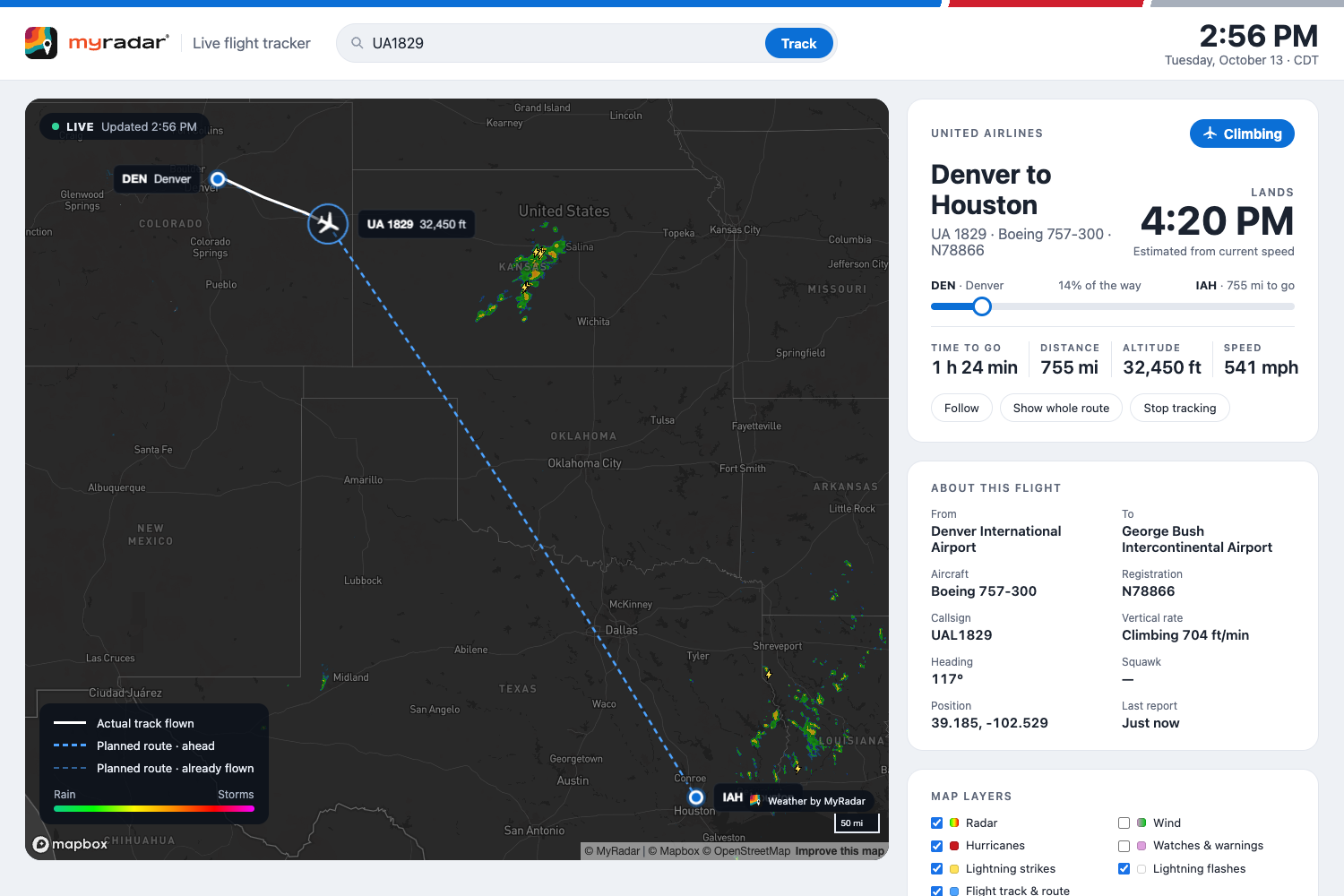
The quickest way to see everything working is the flight tracker sample in the MyRadar SDK samples repository. You need Node.js 20.19 or later, your MyRadar API key and a Mapbox access token.
-
Get the code and install its packages, including
@myradar/mapboxand@myradar/controlsfrom npm:Shellgit clone https://github.com/MyRadar/MyRadar-SDK-Samples.git cd MyRadar-SDK-Samples/web-demo npm install -
Copy the key template to
.env.local:Shellcp .env.example .env.localand replace the placeholders with your keys:
ShellVITE_MAPBOX_TOKEN=pk.your-mapbox-token VITE_MYRADAR_API_KEY=your-myradar-api-key -
Start it and open http://localhost:5173:
Shellnpm run dev
Search for a flight number such as AA 1643, or pick one of the suggested flights, and follow it
over the weather. The sample's
README explains what each
part of the page shows.
Performance#
- A full loop for a typical desktop map loads in a few seconds. A lower-resolution version plays within about a second while the sharp one fills in.
- Zooming in keeps the animation running and sharpens it instead of restarting it.
- GPU memory is capped (512 MB on desktop, 192 MB on phones by default). When a loop wouldn't fit, the radar picks a coarser zoom rather than dropping frames.
Next steps#
-
Build a flight tracker: a step-by-step walkthrough of building a flight tracker of your own: search for a flight and follow it over radar and weather overlays.
The finished flight tracker -
API reference: every option, property and event is documented in the
@myradar/mapboxand@myradar/controlspackage READMEs.