Embed a Forecast Widget
Add a daily or hourly MyRadar forecast to any web page with one iframe, using an embed key that keeps your API key private.
Oct 9, 2026 · Shell · HTML
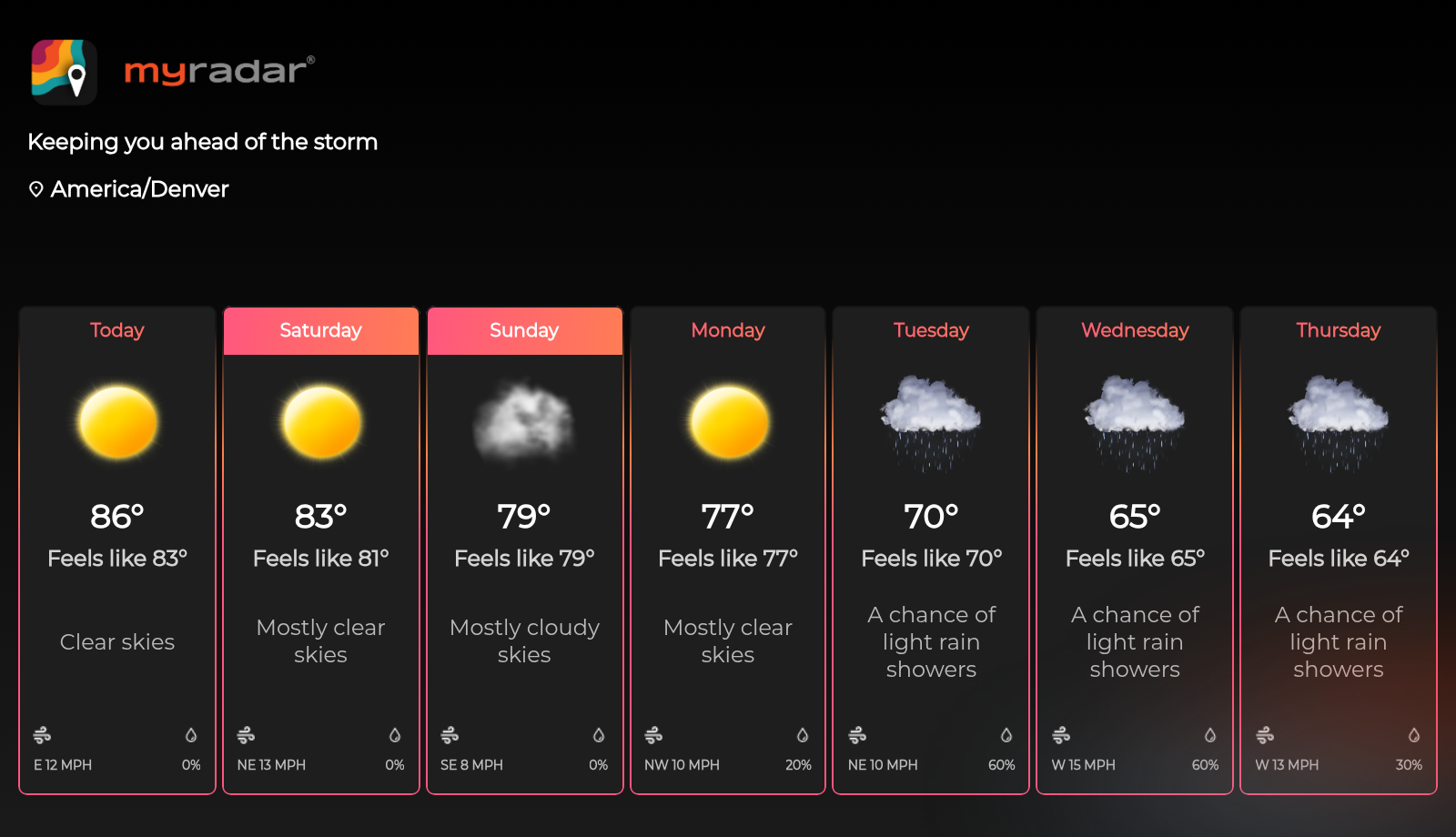
The forecast widget puts a MyRadar forecast on any web page: a row of daily or hourly cards with the conditions, temperature, feels-like temperature, wind and chance of precipitation. You set it up entirely in its URL, then drop that URL into an iframe. There's nothing to install and no code to write.
You'll need a MyRadar API key, which you'll use once to create an embed key.
1. Get an embed key#
A widget URL sits in your page's source, where anyone can read it, so it doesn't use your API key. It uses an embed key instead: a key made from your API key that's safe to publish, and that keeps your API key itself private.
Create one by calling /embeddable/getkey with your API key in the Subscription-Key header:
curl -H "Subscription-Key: YOUR_API_KEY" https://api.myradar.dev/v1/embeddable/getkeyThe response is the embed key, as a JSON string in quotes:
"Uk00bWE2NGJyd0U4YTFi...azdpSGJBPT0="Copy everything between the quotes, including any = at the end. You only need to do this once; the same embed key works for every widget on your site.
2. Build the widget URL#
Every setting is part of the URL:
https://embed.myradar.com/forecast/widget/?latitude=40.1&longitude=-105.1&type=daily&days=7&theme=radar&key=YOUR_EMBED_KEY| Setting | Values | Default | What it does |
|---|---|---|---|
latitude, longitude | decimal degrees | New York | The forecast location. |
type | daily or hourly | daily | One card per day, or one per hour. |
days | 3, 5 or 7 | 7 | How many days, with type=daily. |
hours | 6 or 12 | How many hours, with type=hourly. Always set it for an hourly widget. | |
theme | radar or premium | radar | The widget's look. |
key | your embed key | Required. |
Only the values in the table work: anything else falls back to the default, so days=10 shows 7 days.
Open the URL in your browser to preview the widget before you embed it. If your embed key contains + or /, write them as %2B and %2F in the URL, because a + in a URL is read as a space.
3. Put it on your page#
Use the URL as the src of an iframe, wherever you want the widget:
<iframe
  src="https://embed.myradar.com/forecast/widget/?latitude=40.1&longitude=-105.1&type=daily&days=7&theme=radar&key=YOUR_EMBED_KEY"
  width="800" height="460" style="border:0" loading="lazy" title="Weather forecast"></iframe>
The widget fills its frame and spreads its cards across the width, so size the iframe to suit the number of cards. An 800 × 460 frame fits 7 days, and a 400 × 380 frame fits 3:
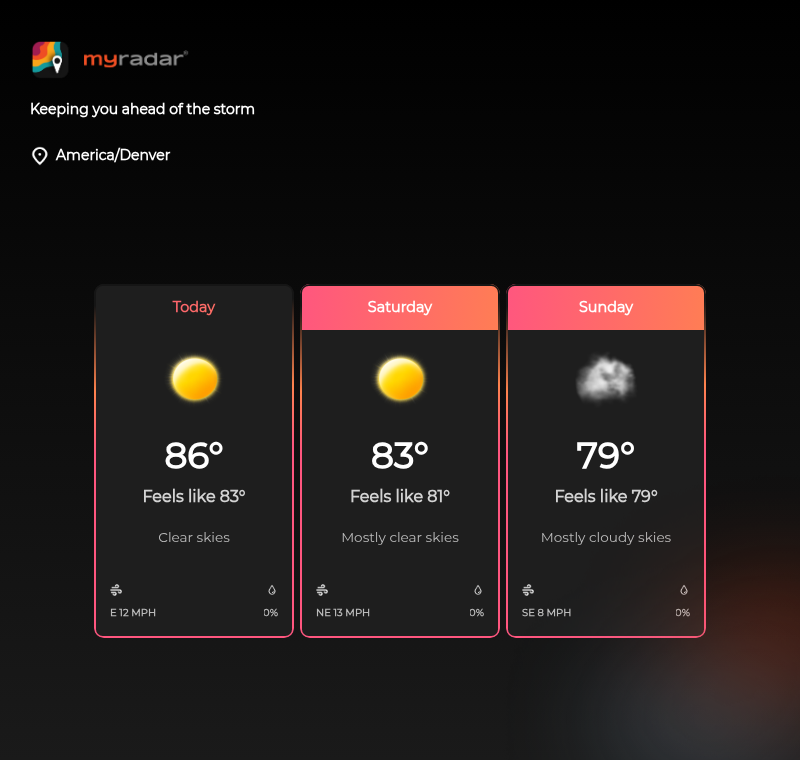
To fit the widget to the width of your page instead, set style="width:100%; height:460px; border:0".
4. Choose daily or hourly#
For an hour-by-hour forecast, set type=hourly and hours to 6 or 12:
https://embed.myradar.com/forecast/widget/?latitude=40.1&longitude=-105.1&type=hourly&hours=12&theme=radar&key=YOUR_EMBED_KEY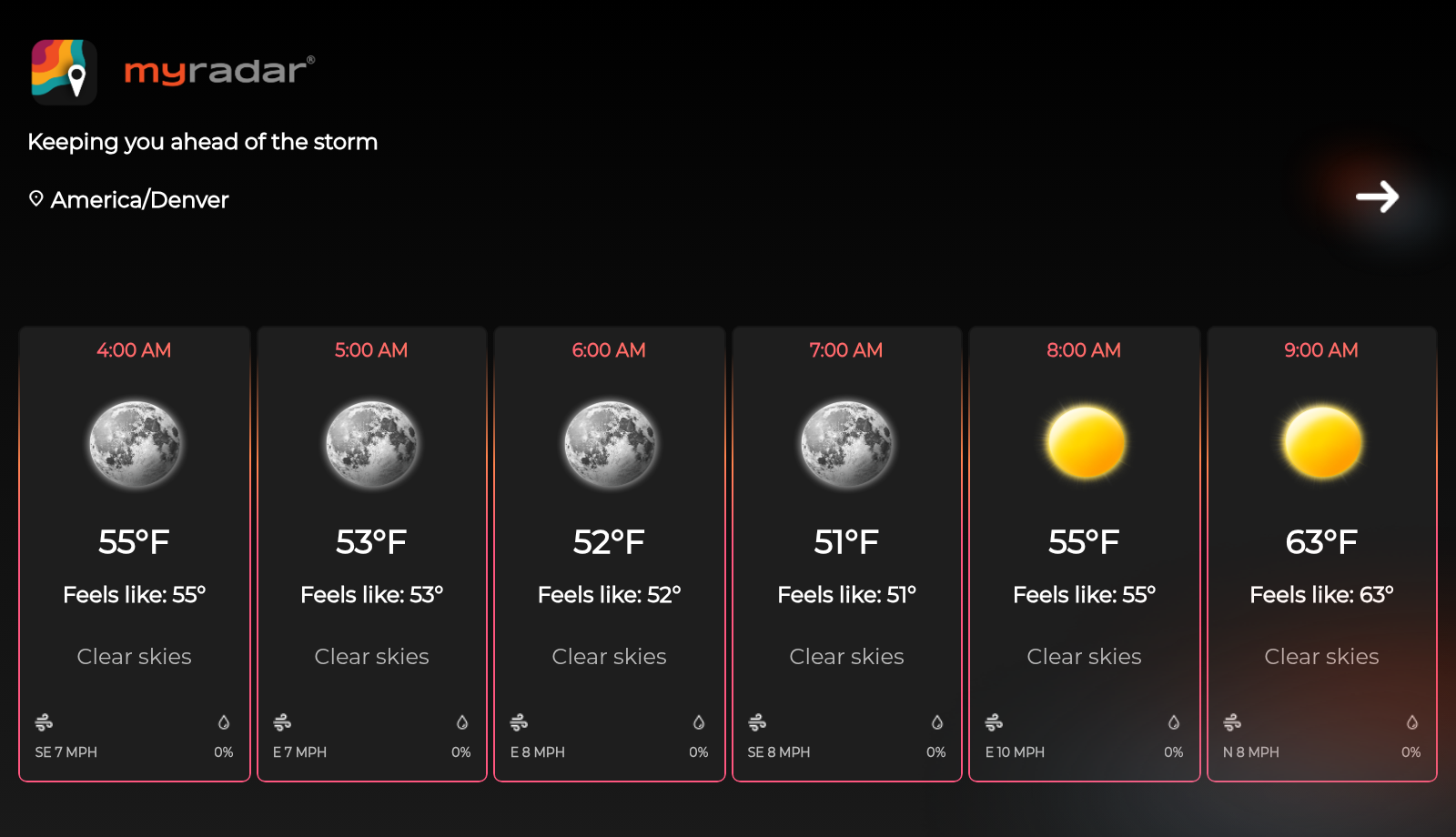
The cards show six hours at a time; with hours=12, visitors use the arrow to see the rest.
5. Pick a theme#
theme=radar is the dark theme above. theme=premium sets the cards over a photo background:
https://embed.myradar.com/forecast/widget/?latitude=40.1&longitude=-105.1&type=daily&days=7&theme=premium&key=YOUR_EMBED_KEY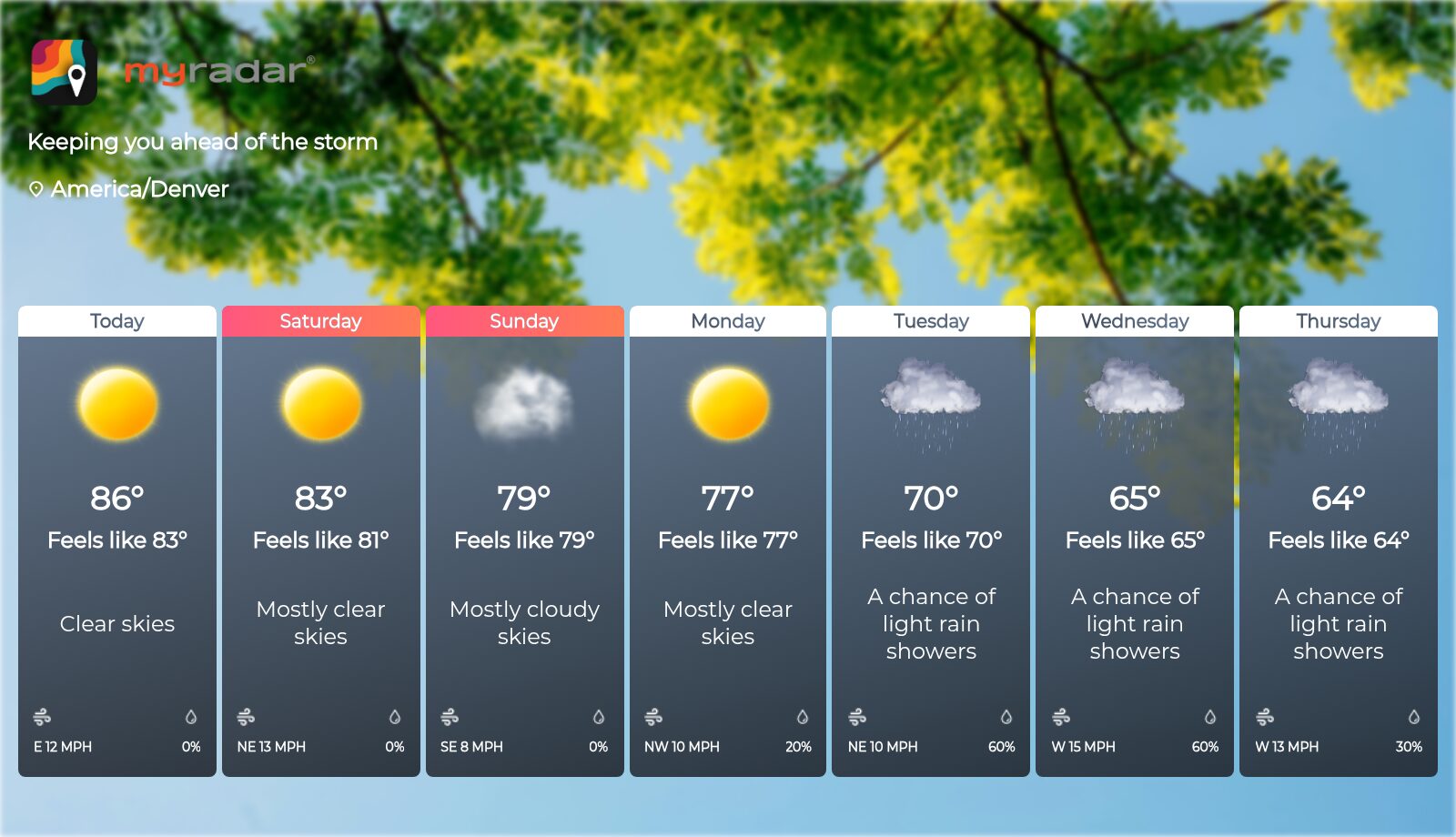
If the widget shows a message#
| Message | What to check |
|---|---|
| API key is required | The URL has no key. Add your embed key. |
| Could not fetch weather data | The key isn't valid. Check you copied the whole embed key, and that it was made from an active API key. |
Next steps#
- To embed a live radar map alongside the forecast, see Embed a weather map.
- To build your own forecast display from the data, see Get a forecast and plot the next hour of rain.